
BasicFree trial
€30€90/ year · until 31 Dec 2026
Three factory sounds (Soft, Radio, Loud) and the core controls. Pick a sound, set the drive, go on air.
Web radio listeners are on headphones, laptops and phone speakers, often with the volume already set. OptiLive sits between your mixer or playout and your stream encoder, and keeps tracks and voice at a level they will not have to fix themselves.
Windows 10/11 · macOS 10.15+ · Basic €30/year · Pro €120/year · 12-month licences with periodic updates
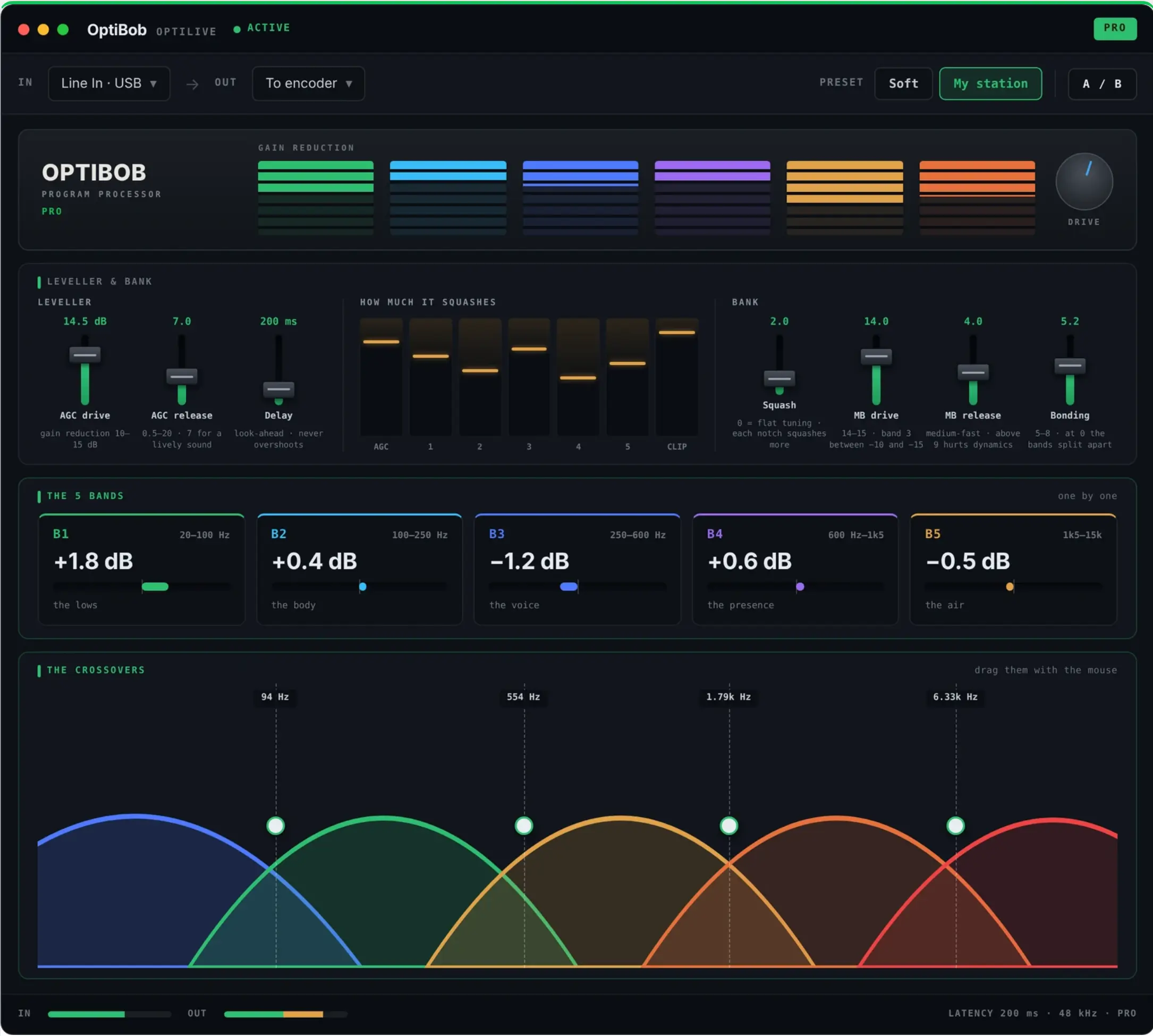
A presenter speaks softly, the next track is a brick-wall master, the one after is from 1974. On headphones, every jump is right in the listener’s ear. OptiLive smooths it out before the stream is encoded.
Most web stations run from a playout library assembled over years, plus live voice from a microphone that is set once and forgotten. The two-speed AGC handles both cases: the slow speed evens out differences between tracks, the fast speed catches a voice that suddenly gets loud, without pumping the music in between.
Five-band compression then keeps the tonal balance steady, so a thin old record and a bass-heavy new release sit together on the same stream.
The encoder is where your stream is compressed for delivery, so it should receive a signal that is already finished. Put OptiLive before the encoder in your signal path and let it level, shape and peak-limit the audio, then let your existing encoder do its job unchanged.
The true-peak limiter at the end of the chain keeps intersample peaks under your ceiling. Leaving a little room below full scale gives the encoder a cleaner input than a signal that is hitting 0 dBFS.
The result listeners hear depends on the encoder, codec and bitrate you use after processing. Evaluate the encoded stream itself: open your public stream on a phone, in a browser and on headphones, and listen there. Check audio routing with your own setup rather than assuming a built-in integration.
If heavy processing sounds fine on the studio monitors but gritty on the stream, back off the drive or pick a softer factory sound. Lower-bitrate streams often prefer a little less density.
Evaluate OptiLive before your encoder in your own audio chain. No particular encoder, codec or streaming service compatibility is claimed here; the encoded result depends on your routing and encoder settings.
Three factory sounds (Soft, Radio, Loud) and the core controls. Pick a sound, set the drive, go on air.
Everything in Basic, plus individual controls for all five bands, draggable crossovers and your own saved tunings.
The new downloads are awaiting publication. Direct download links will become active once the files are added to the latest release. No GitHub account is needed.
Mac .pkg or Windows Setup .exe: choose Desktop, Plugin, or both inside the installer. Basic and Pro are Desktop editions. Player is a separate free download. Full edition comparison.